

BibleHabit Bible App: An Honest Review from Using It Myself
We tapped through BibleHabit’s McCheyne reading plan, passage summaries and verse explanations, and AI Bible question screen, organizing both the convenient features and the parts that may be less clear at first.
When It Is Hard to Read the Bible Every Day
Installing a Bible app is one thing; opening it every day is another. You may stop while deciding how much to read, or close the app after missing several days because you do not know where to start again. On the official BibleHabit blog, I tapped through the actual app screens and checked the features for choosing and recording each day’s reading. I will also note the features that felt convenient and the parts that may be confusing at first.
Today’s Reading Is Visible Immediately on the First Screen
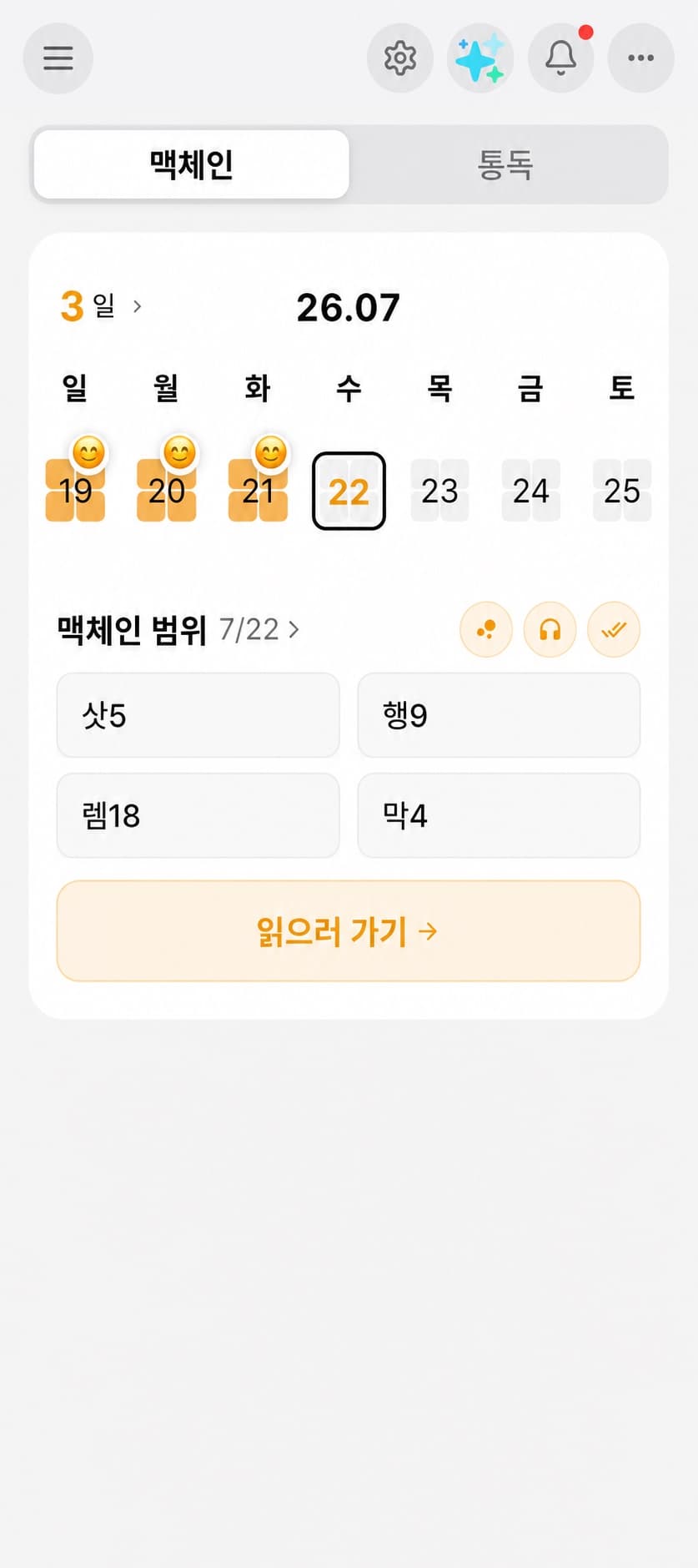
I opened the McCheyne Bible reading screen first. Below the date, that day’s four ranges are separated, and you can immediately tap “Go to reading.” After reading, you can leave a completion mark and check your reading streak.
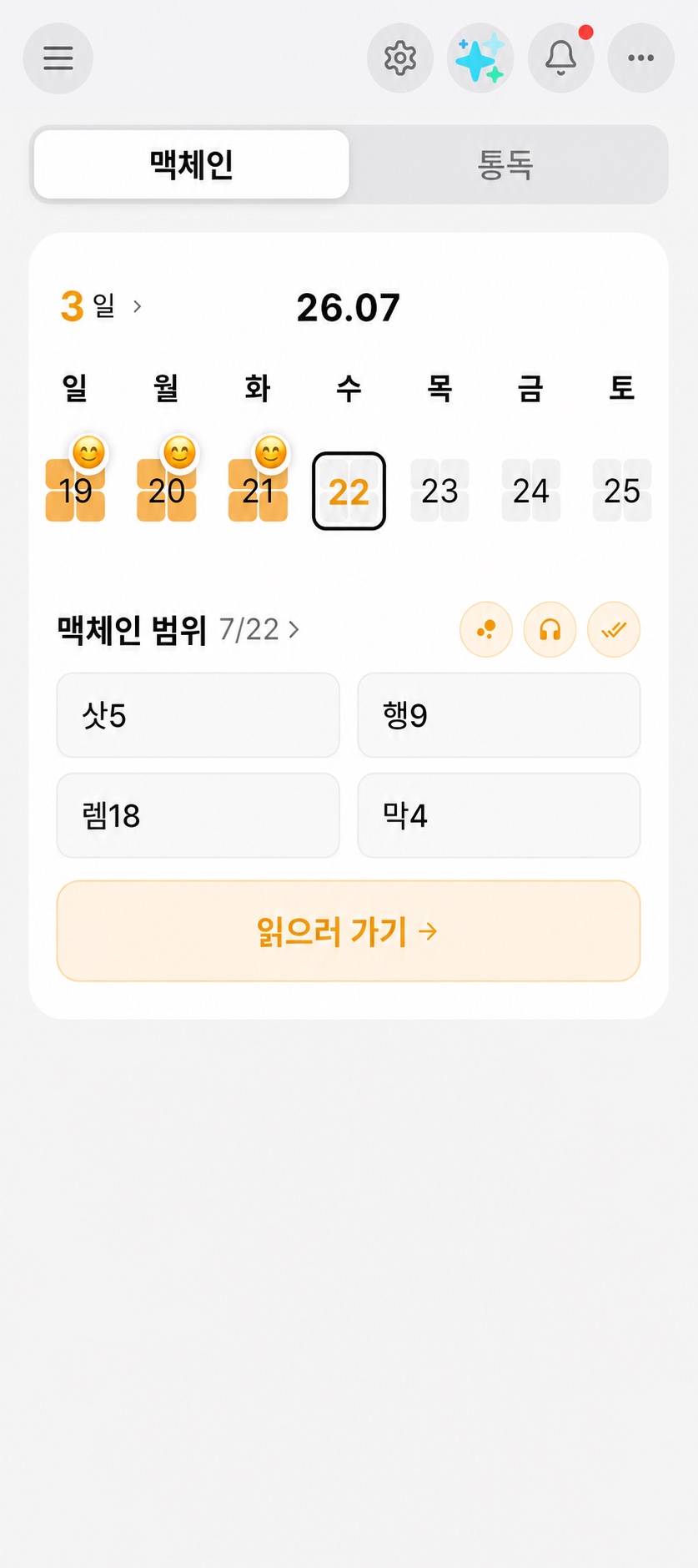
You do not have to choose today’s chapters from scratch; the four ranges for that day appear right away. If it is hard to read everything at once, you can read only some of the four sections first, and the sections you read retain a completion mark. Even after taking several days off, you can look at the completion status by date and check where to resume. If McCheyne’s method is unfamiliar, you can first check the McCheyne Bible reading plan guide to learn how to read it.
Chapter-by-Chapter Summaries Are Available on the Passage Screen
When you open a passage from the reading plan, chapter selection, search, and listening menus appear at the top, with a passage-summary card shown first. The summary includes a scene image and key content, and you can expand it to read more or translate and copy it.
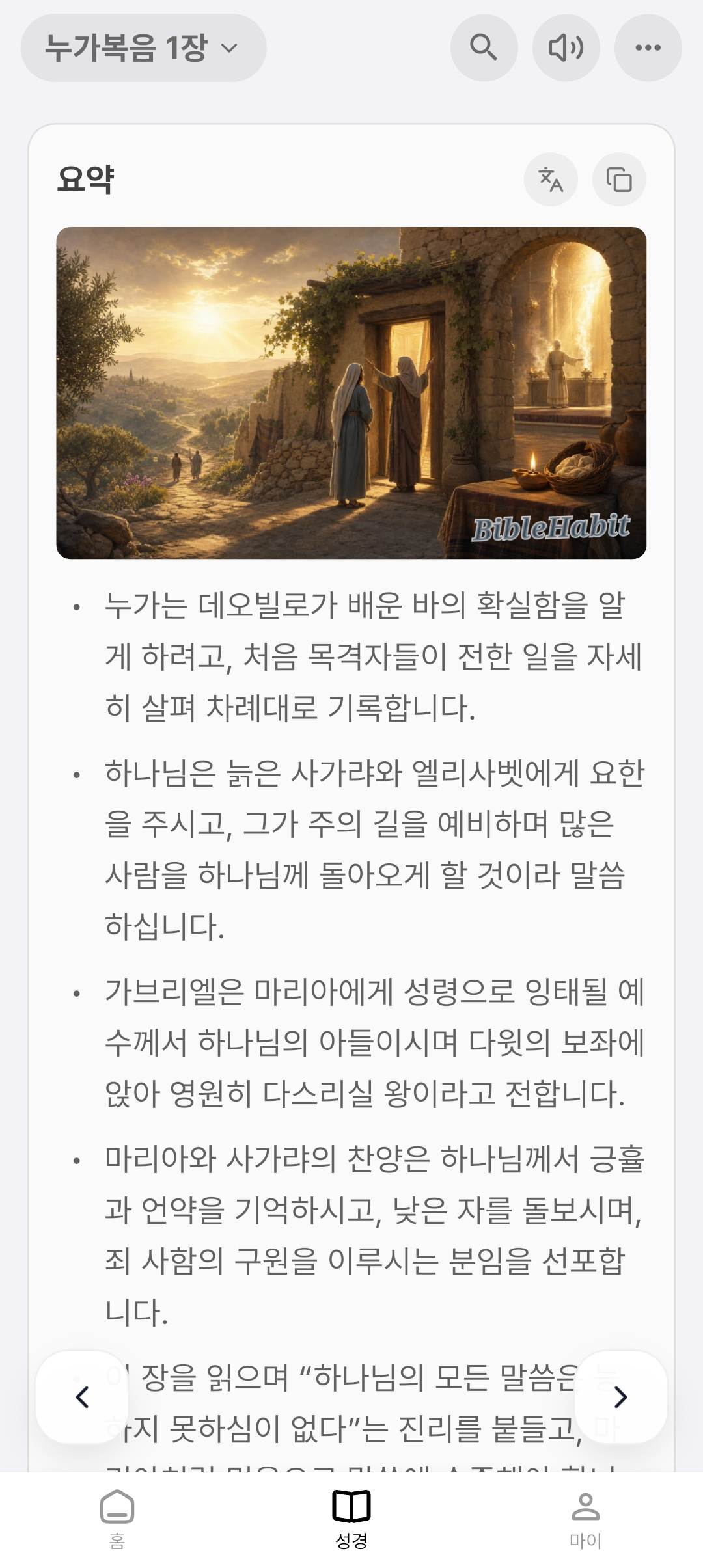
Chapter summaries list major scenes and key content, so you can see what a long chapter contains before reading it. If you encounter a difficult passage while reading the Bible text, you can expand the summary on the same screen. However, if you think you have read the whole passage just by looking at the summary, you may miss important context. Use the summary as reference, but it is better to read on the basis of the actual verses.
Explanations Are Available for Each Verse
When you select a verse in the passage, menus for sharing, copying, image, listening, journaling, and Elim open below. Beneath those, you can also see an explanation and an original-language card. You can choose a color to highlight the verse and write in your journal about the verse that stays with you.
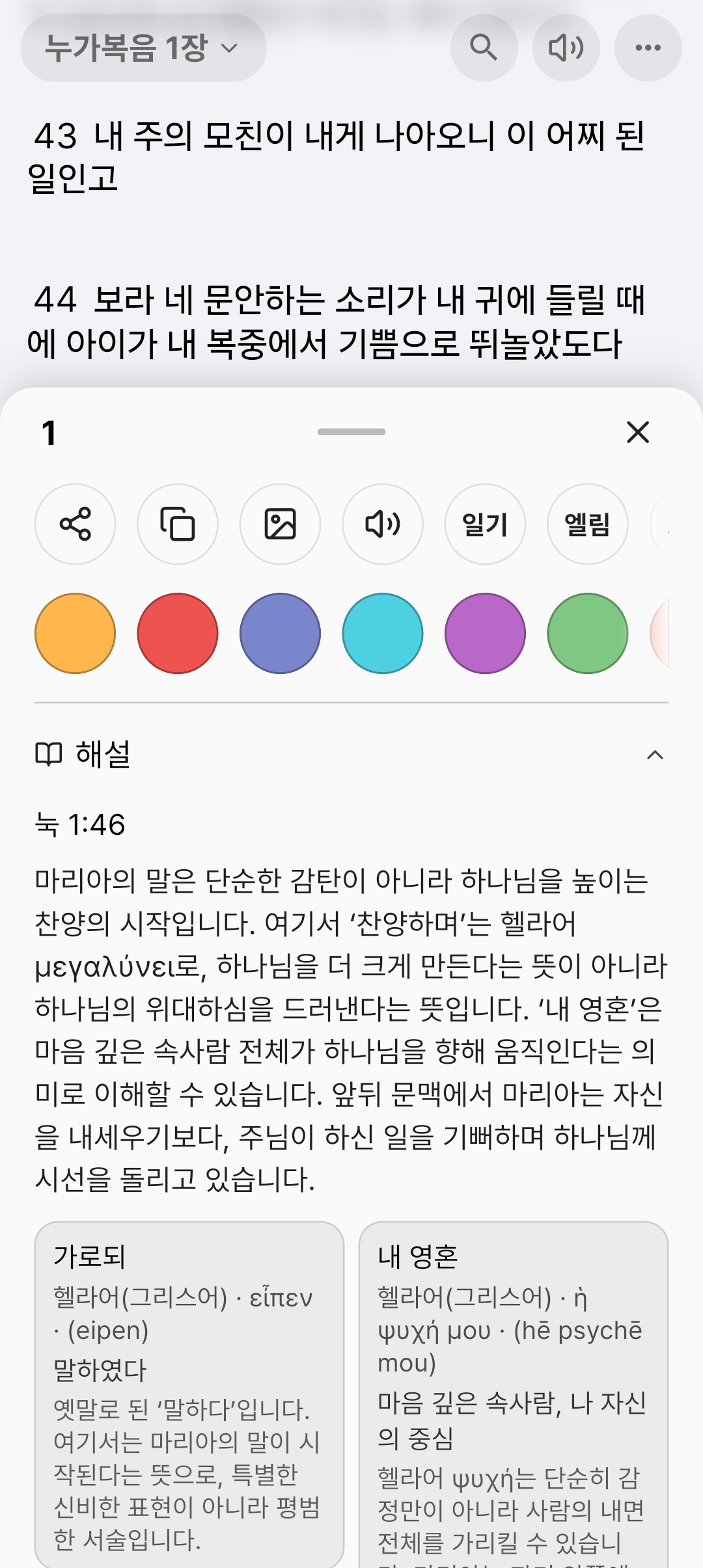
If an unfamiliar expression appears while you are reading a verse, you can check the explanation and original-language information on the same screen. The original-language card is especially useful when you want to check what a word means in that verse. You can highlight a verse that stays with you immediately or record it in your journal. Explanations are reference material, so it is also important to consider the whole passage together with the teaching of the church.
Examples Were Ready to Help When No Question Came to Mind
The AI Bible question screen shows Bible question examples, a highlight summary, and a shortcut to your reading record together. When you are unsure what to ask, you can choose an example, add what you are curious about, and ask immediately.
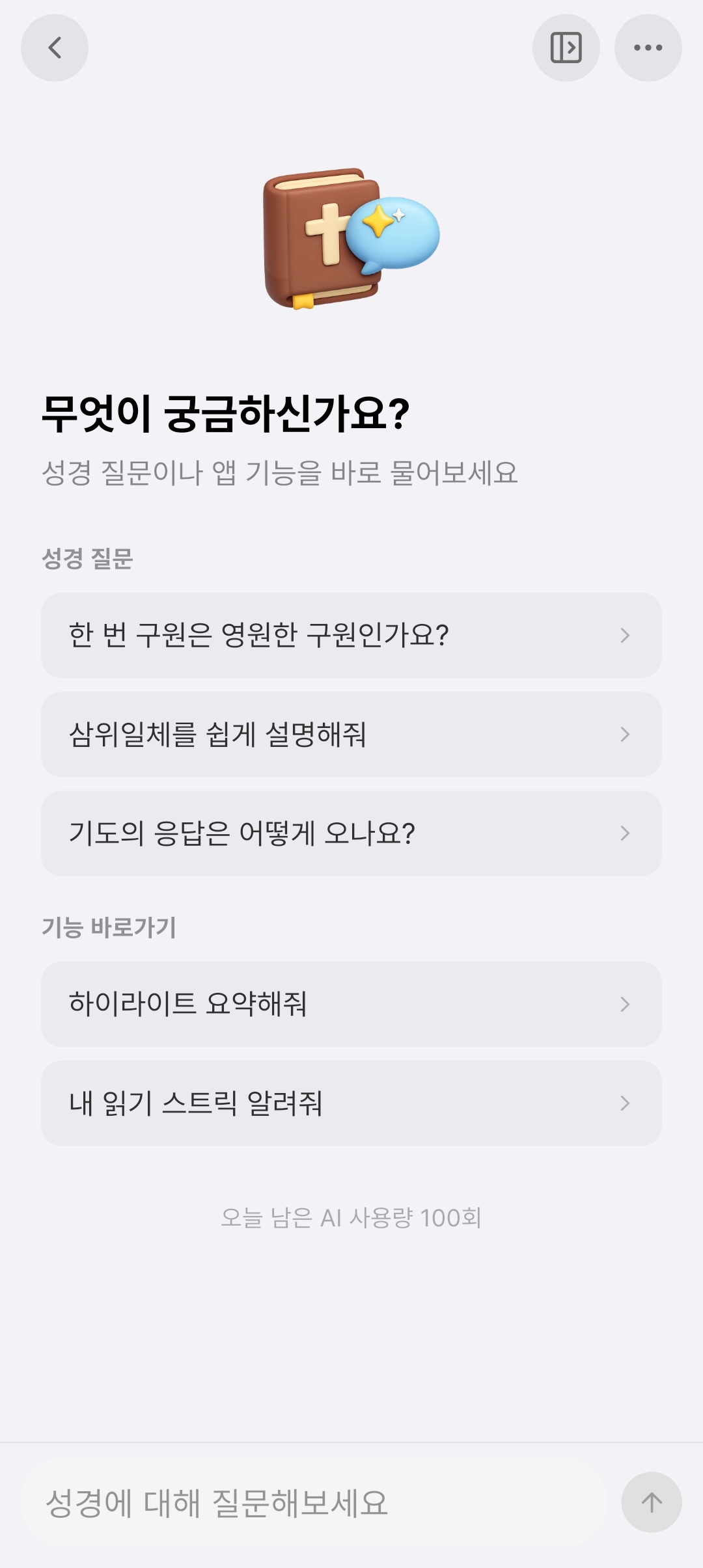
After you enter a question, you can find related verses or concepts right away. However, rather than settle doctrine or the meaning of a passage based only on an AI answer, it is safer to check what it says again in the actual Bible. If you want to find verses on a specific topic, you can also use AI Bible search.
Convenient Features and Parts That Felt Confusing at First
After checking today’s reading, I opened the passage and marked a verse on the same screen. I did not need to move back and forth through the app several times or open a separate memo.
Each screen has many menus, so when you first open it, you may briefly wonder what to use first. At first, it is better to use only three things: “check today’s reading → read the passage → mark it complete.” Once these three are familiar, you can add explanations, a journal, or AI questions one by one when needed.
People It Suits Well
It is a good fit for people who find it burdensome to decide how much to read each day or who want to keep their reading-through record and meditation notes in one place. It is also convenient for people who want to check an explanation and original-language information immediately while reading a verse. On the other hand, people who want a very simple screen for reading only the text, without any menus, may find it has too many features.
At first, try using only the reading plan and completion mark. Once those two features are familiar, it is enough to add explanations, journaling, and questions one by one whenever you need them.
Related articles
Why Does Deuteronomy 6 Tell Us to Weave God’s Word into Daily Life?
Deuteronomy 6 commands God’s people to keep His Word in their hearts and teach it to their children throughout daily life. Discover what this command means and how it helps us remember God even in times of abundance.
How to Choose a Bible Reading App That Lasts
What should you consider when selecting a Bible app? Today, we review accessibility, note-taking and progress tracking, notifications, and interface design to establish criteria for cultivating a lasting habit of Scripture reading.
How the Word Leads Your Day: The Most Practical Way to Start Bible Meditation
An approachable guide designed for beginners feeling overwhelmed by Bible meditation. It offers a biblically sound 20-minute meditation routine and practical principles to rightly understand and apply God's Word in daily life.
 Bible Habit
Turn this article into today’s reading habit
Keep your McCheyne plan, sequential reading, notes, and progress together so the next passage is always clear.
- Today’s passages
- Reading checklist
- Notes and highlights